
Sprag · Support
Install help & support
Install in four steps
- 01
Download and extract
Download
Sprag-Windows-x64-0.1.23.zip(55.7 MB). Right-click it › Extract All, and keep the Sprag folder wherever you like, for example in Documents. There is nothing to install and no .NET runtime to add. - 02
Open Sprag.exe
The first time, Windows shows Windows protected your PC. This preview isn’t code-signed yet, so SmartScreen doesn’t recognise it. Click More info, check that the app is Sprag.exe, then Run anyway. Windows won’t ask again for this file.
Want to be sure the file is ours? In PowerShell, run
Get-FileHash .\Sprag-Windows-x64-0.1.23.zipand compare it with the SHA-256 on the download page or in SHA256SUMS.txt.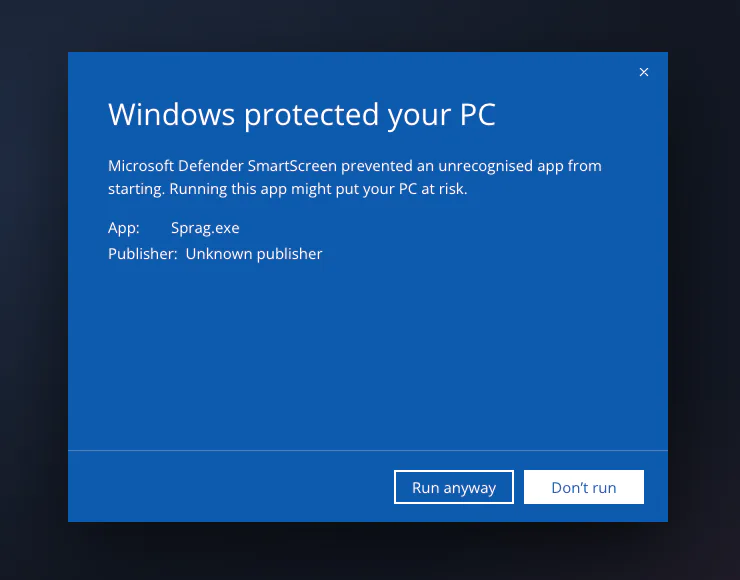
- 03
Allow it on private networks
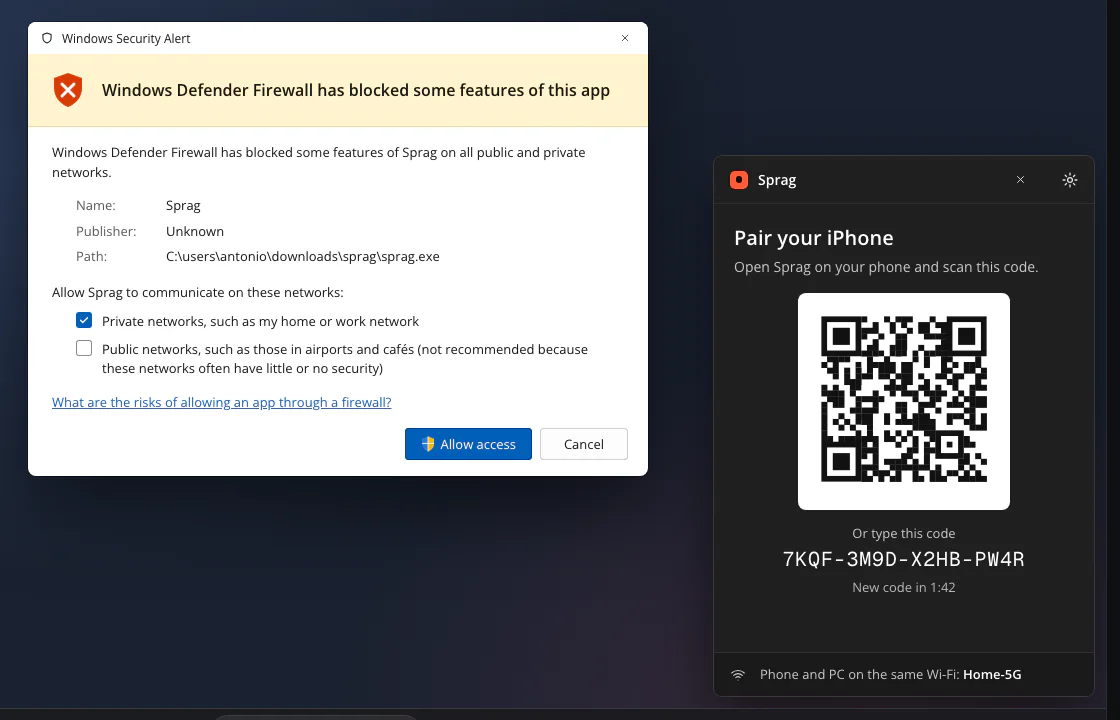
Windows Firewall asks whether Sprag may use the network. Keep Private networks ticked, leave Public unticked, and click Allow access. Your iPhone needs this to reach the PC on your home Wi-Fi.
- 04
Pair your iPhone
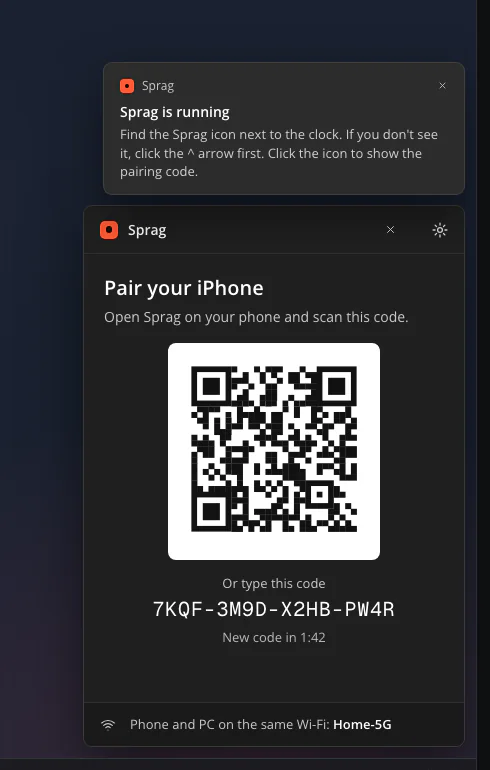
Sprag’s window shows a QR code and a 16-character code that renews every 2 minutes. In the iPhone app, scan the QR code, or tap your PC in the list and type the code. Both screens then show the same six digits: if they match, tap Yes, it matches on both. If they don’t, cancel.
Sprag lives next to the clock. On Windows 11 new icons start hidden under the ^ arrow: drag it out to keep it in view. Closing the window doesn’t quit Sprag; use Exit in the icon’s menu.
Troubleshooting
My iPhone doesn’t find the PC
Check, in this order:
- iPhone and PC are on the same Wi-Fi network, and it isn’t a guest network.
- Sprag is allowed on private networks: Windows Security › Firewall & network protection › Allow an app through firewall › tick Sprag under Private.
- Windows sees your network as Private, not Public (Settings › Network & internet › your Wi-Fi).
- On the iPhone, Settings › Privacy & Security › Local Network › Sprag is on.
- A VPN on either device can hide the PC: pause it and try again.
Still nothing? In the iPhone app choose to enter the code by hand, with the address shown in Sprag’s window (for example 192.168.1.20:47800).
There is no “Run anyway” button
If Windows says the app was blocked by Smart App Control, it blocks unsigned apps outright and this preview can’t run on that PC. Please don’t turn off Windows protections for it: the signed version will fix this. On a work PC, your IT policy may also block apps that aren’t approved.
Some windows ignore the pointer or the keyboard
Windows doesn’t let ordinary apps control windows that run as administrator, User Account Control prompts, or the lock and sign-in screens. Sprag shows these as blocked rather than failing silently. Click them with your real mouse, or run the other app without administrator rights.
Check whether the Bluetooth fallback works on my PC
The Bluetooth fallback needs a PC adapter that can act as a Bluetooth LE peripheral. Open PowerShell in the Sprag folder and run:
.\Sprag.exe --ble-check
You need PeripheralRole: True and a last line that starts with OK. With NOT OK the fallback isn’t available on this PC; Wi-Fi works as usual. Started without a terminal, the check opens a small window instead.
Wake-on-LAN doesn’t wake my PC
Waking needs the PC’s network adapter and BIOS/UEFI set up for it, and works best on a cable connection. Sprag has a step-by-step guide: right-click the Sprag icon › Wake-on-LAN help.
Where are the logs?
Right-click the Sprag icon › Open log folder, or paste this in File Explorer’s address bar:
%LOCALAPPDATA%\Sprag\logs
There is one file per day (sprag-YYYYMMDD.log), the last 7 days are kept, and they never contain what you type. Attach the latest one when you write to me.
How do I remove a phone, or Sprag itself?
To remove a phone: Sprag icon › Settings... › Paired phones › the phone’s menu › Remove this phone. To uninstall: untick Start with Windows in the icon’s menu, click Exit, then delete the Sprag folder and %LOCALAPPDATA%\Sprag.
Which Windows versions are supported?
Windows 11, 64-bit, on Intel or AMD (x64) processors. This preview isn’t built for Arm-based PCs or tested on Windows 10.
Still stuck?
Write to me with your Windows version, your iPhone model and the latest log file.
Send an emailciao@antonio.ai
How your data is handled: privacy policy.